How to change or assign agent in DID module?
1. Login using the admin account at https://app.moitele.com/login
Moitele Customer Portal Login
2. Navigate to the Agents/DIDs section on the left-hand side panel
3. Select DIDs (Phone number) to view all active DIDs and agents assigned.
4. Click on the edit icon under 'Actions'.
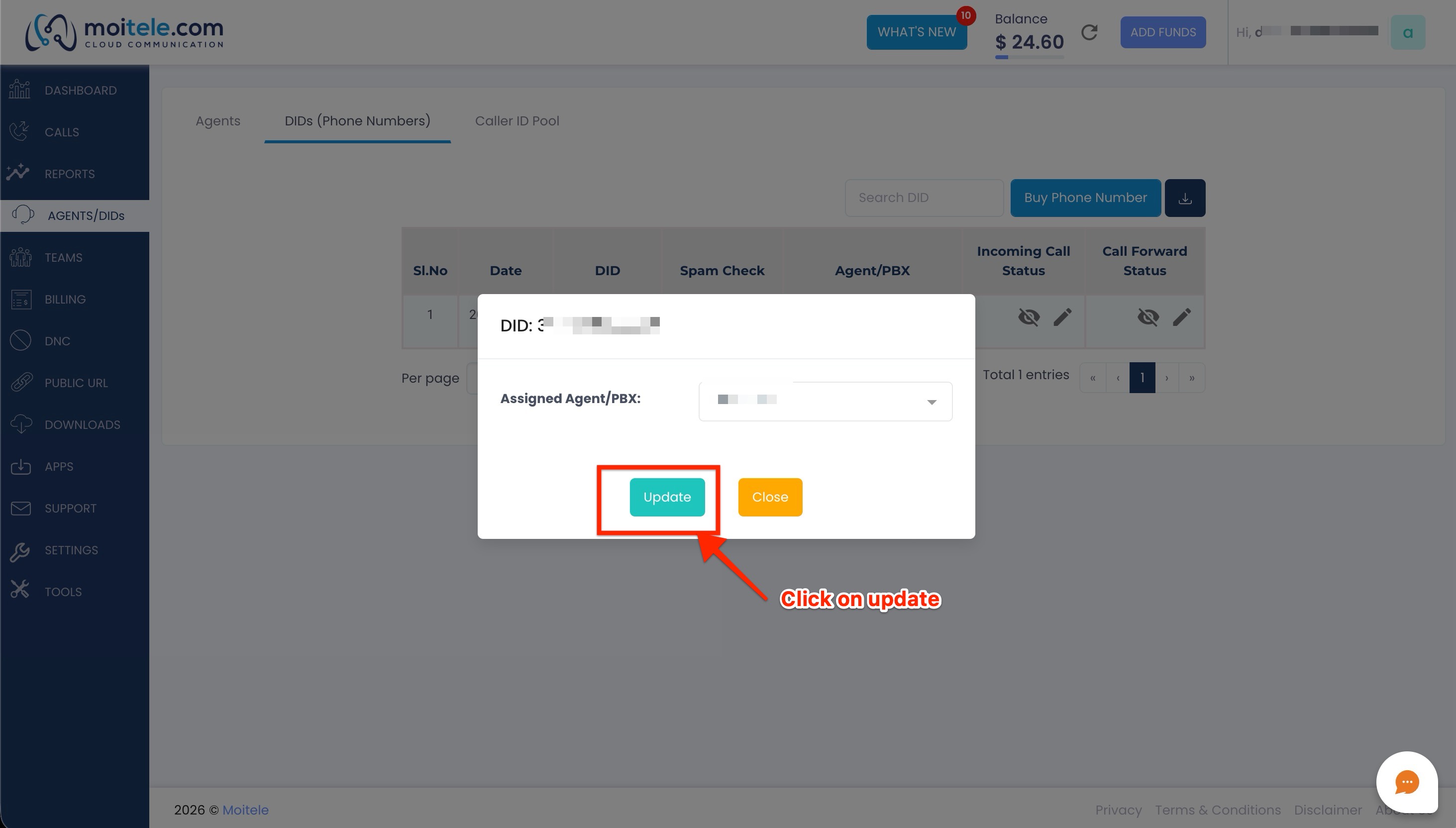
5. Select 'Agent/PBX' from the drop-down menu
6. The list of agents, under your account will be displayed, select the agent from the list to whom you want to assign the did
7. The did assigning has been successfully updated
Related Articles
How to setup call forwarding for your DID in Moitele user portal?
1. Login using the admin account at https://app.moitele.com/login Moitele Customer Portal Login 2. Navigate to the Agents/DIDs section on the left-hand side panel 3. Select DIDs (Phone number) to view all active DIDs and agents assigned. 4. You can ...
How to edit/update an existing agent on Moitele User portal?
Follow a few simple steps and easily edit existing agents to your account! Any of the following actions can be done under an existing agent. Change username Change password Change caller id Change the agent status Change agent username Log-in to your ...
How to enable Do Not Call Registry (DNC) feature for agents in Moitele softphone?
By enabling DNC feature, agents will be able to mark numbers as DNC from softphone. Step 1: Login to the portal as a admin. Step 2: Go to the settings module and enable DNC feature for agents. Step 3: After enabling DNC feature for agents, click on ...
How to enable call label feature in Moitele softphone?
Step 1: Login to the user portal as admin. Step 2: Click on settings module. Step 3: Check the Display Call Label option. Step 4: Click on save once after checking the Display Call Label. Step 5: Call Label feature will be assigned to the Moitele ...
How to create call labels in Moitele user portal?
Step 1: Login to the user portal as an admin. Step 2: Click on call's module in the user portal. Step 3: Click on Call Label Step 4: Click on Add to create new call label. Step 5: Enter the new call label. Step 6: Select the members you want to ...